




How to set up do not disturb on Samsung galaxy phones?
How to set up do not disturb on Samsung galaxy phones?
Are you too annoyed with the irritating sounds of the messages you might think if this is the issue then why don’t I put my phone on silent but still those messages will reflect on my android screen notification what can I do if I want to mute them permanently the best solution for muting the annoying notifications can be putting your phone on DO NOT DISTURB MODE?
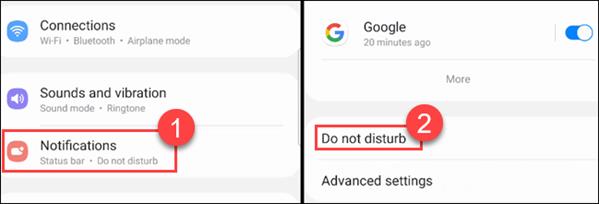
if you were finding the same answers then dont worry here in this article I have clearly expanded the steps through which you can put your phone notifications on DO NOT DISTURB mode on Samsung galaxy android it is not at all a complicated process it is as simple so without wasting your time lets break it down? Here you go with the steps
The steps are enlisted below:-
- Firstly swipe down the notifications bar and there at the top right corner, there is a gear icon tap that it will open to the setting of the phone
- Secondly, this will give you a list of why should you use different web browsers?
- many subheadings go with NOTIFICATIONS > DO NOT DISTURB and after that go with CALLS, MESSAGES, & CONVERSATIONS
- Now this might be a little difficult for you as when you will tap for contact they will give you different subheadings of all the contacts like contacts only, a favorite contact, none you will have to select the names
- Similarly in messages and conversations, you will be given a different kind of options and you have to select them moreover one another option s also given for repeat callers suppose you have received a call from an unknown number and you dont want to receive the call again in 15 minutes you can pull the key for repeat callers to green and you are done with putting the phone on do not disturb mode in Samsung galaxy android smartphone
These were all the pretty simple steps through which you can save your time from these annoying notifications do we hope this article will save you time and the annoying notifications are no longer going to irritate you what are your thoughts on the same share with us in the comment section.