



How to Minimize Notifications on Android Device?
Here in this article you'll learn how to minimize notifications on Android.
Pop-up notifications might be annoying while messaging or contacting someone, but if you think the only way to get rid of them is to disable them completely from the Android status bar, then you're wrong; by extending Android's notification shade, you can also "minimize" notifications to keep them visible. As a result, you don't need to download any apps or spend hours researching how to hide notifications; instead, you can just minimize them by following a few simple steps.
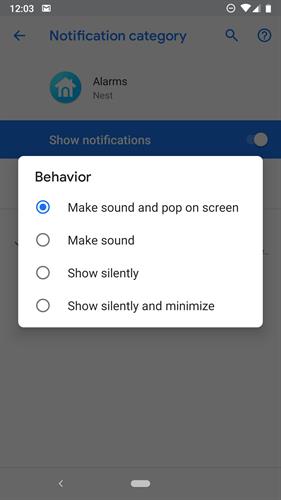
Image Courtesy: Android Central
Therefore, if you're also annoyed seeing those notifications pop up on your Android's status bar then simply follow the steps below to get rid of this problem.
Steps to minimize notifications on iPhone.
Step 1. First of all, go to the settings menu by tapping on the "gear icon" situated at the top of the status bar.
Step 2. Once the settings menu appears you'll see a list of options, just tap on “Apps & Notifications.” from there.
Step 3. After that, a list of recently used applications will appear in front of you, expand the list as per your need.
Step 4. Now, scroll down to search the application whose notifications you want to minimize.
Step 5. Once you find the desired application simply tap on it. Once you tap on it, the list of Notification Channels appears.
Step 6. After that choose the certain notification channel you want to minimize.
Step 7. Once done, you'll see an option called “Silent” at the top simply tap on it.
Step 8. After that, you'll see another option called “Minimize”, just enable it to minimize the notification channel of the particular application you want.
Final Thought:
Following the steps above you can easily get rid of those unwanted app notifications that distract you while you're busy doing some important work on your Android device.