




How do we change the theme of our Touch Keyboard in Windows 11?
Here, in this article you'll get to know about the simple steps to change the theme of your Touch Keyboard in Windows 11.
You may frequently check for articles or videos to learn how to modify the theme of your desktop screen, but have you ever considered changing the theme of your shabby keyboard? Obviously, no; although, in today's digital age, it can also be possible, before you jump to any conclusion, let me clarify to you all that this customization is only available with a touch keyboard.
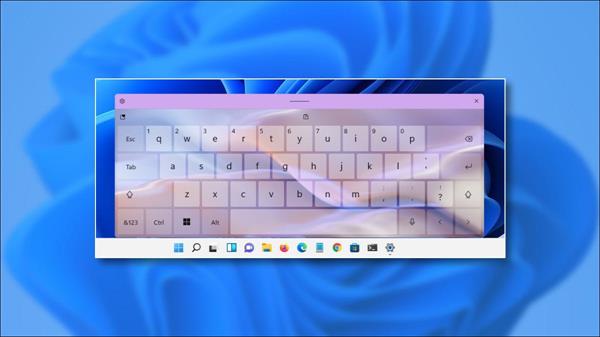
Image Courtesy: How To Geek
In Windows 11, a user with a touch keyboard can easily customize the theme of their touch keyboard. For those who don't know what a touch keyboard is, it's a digital, on-screen keyboard that allows you to type on a touchscreen. Touch keyboards are commonly found on desktops and iPads.
Steps to Change the Touch Keyboard Theme:
The theme of your touch keyboard can be easily customized in Windows 11, to know how to read the full article.
Step 1. To accomplish it, go to Personalization > Touch Keyboard in Settings (hold Windows+i).
Step 2. Widen the "Keyboard Themes" menu through Touch keyboard settings by tapping it, and you'll have a number of themes from where you can simply pick the best one.
When you choose a theme from this list, it will be updated immediately. The new theme will be visible shortly when you start using your touch keyboard regularly.
Final Thought:
Windows 11 currently offers 16 different touch keyboard themes. Though some have simple themes, the far more colorful themes have unique names like scented hand soap, etc.
Apparently now at about 12 additional themes available, moreover you could pick “Custom Theme” to personalize the touch keyboard with your favorite colors and graphics.
These simple and effective steps can make the appearance of your touch keyboard as beautiful as you ever imagined.