

When delivering an important email, it can be hard to locate the person to whom the email should be sent. However, if you use Gmail, there is some good news for you: Google allows the user to add recipients' contacts.
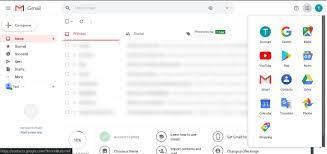
Image Courtesy: Teamzy
This is a really useful feature because if you start typing someone's name into the address field, their name will appear in the address field. So, provide the contact details of your loved ones so that you don't have to spend time looking up their email address when sending a message.
There are two methods to import contact details into the Gmail contact list, first is through directly storing mail details via copying the sender's mail address by opening their mail or another is by writing email contact details under the create contact option. Hence, do read the article to follow the steps properly in order to store contact details into your Gmail ID.
Steps to import contacts directly from the email:
- First of all, open your Gmail Id and go to the email you've received, the contact of whom you wish to add.
- Once you open the mail you'll see the three dots on the right side of the mail, just click on it.
- Under the three dots, you'll see the 'Add to Contacts list' option, just tap on it to store the contact of the recipient.
- If you ever want to make changes to the contact details then you can do it easily hassle-free.
Steps to import contacts to Gmail:
- Firstly, open your Gmail account and tap on the drop-down list next to your account DP.
- Then tap on the "Contacts" option from the drop-down list, it will redirect you to Google's contact application, just tap on the install button to install it on your device.
- Once you open the Google contact page you'll see an option called "Create contact", just tap on it.
- That's it, now you can easily write the contact details including email, name, etc of the people to whom you wish to send the mail and import the contacts by tapping on the "Save" option.