

How to hide red notifications badges on mac?
If you are too irritated by the red badges notifications on mac then this article is for you. they are just the signs that indicate that you have pending unread messages or unread emails but here in this article I will tell you how to turn them off I will tell you how to turn off permanently so that it will not bother you is good to have messages which will inform you your daily important messages but no one actually wants daily reminders in millions as it becomes an irritating part on the notification which let the phone beep for the whole day the process is very very easy and comfortable in use so doesn't matter that you are a technology geeking person or not the steps will clear everything at once read the whole article till the end and dont skip the steps in between here you go with the steps
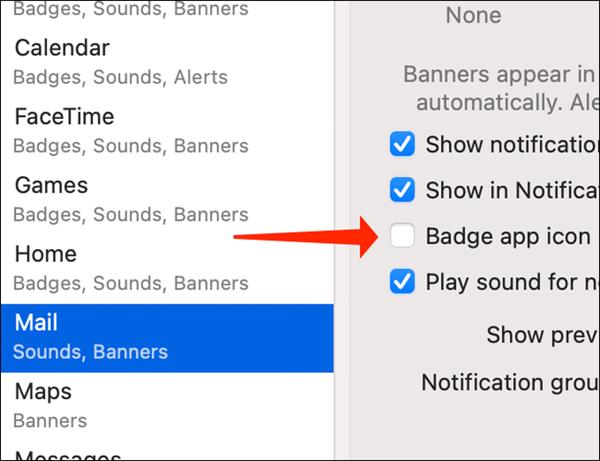
First of all you g on your mac screen and in the right top corner you will found the Apple logo and operating system preferences tap on t and select it after that there will be a term called NOTIFICATIONS tap that this notification will have an icon of red dot bell click on it under this you will see a bunch of installed app under this bar list you have to choose badge on mac all the names must have a box in the left and their names in the right on the left hand the notifications which are opened will have a green tick in the front of their names BADGE OF THE ICON tap that and uncheck or untick it tick means you want to receive the notifications and untick means you are no longer going to receive the messenger or notifications on your screen and this will totally free you from all the notifications from the badge and later on if you find it difficult to go and open the app again and want the switch to back the just repeat the process and do vice versa things will be back to same
This was all about the information for removing the red dot badge from the icons do we hope this article will help you and what are your thoughts on the same let us know in the comment section